
BUSINESS MESSAGING ·
How to Make a WhatsApp QR Code for Your Business
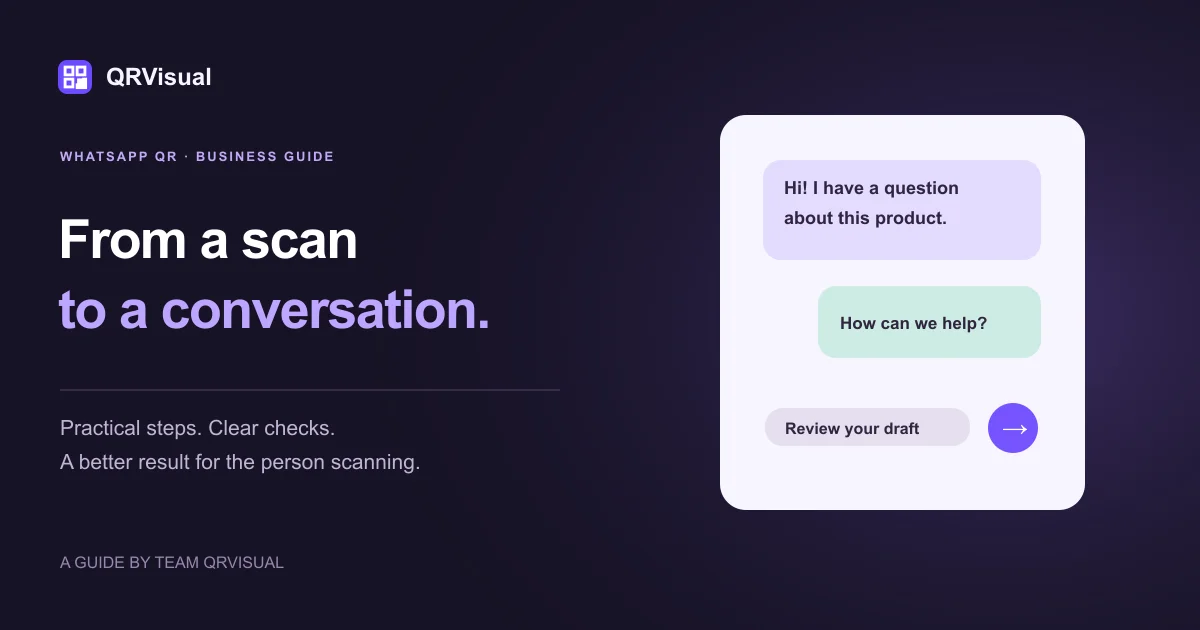
Quick answer: Use a WhatsApp number with its country code, add a short optional message and create the QR. Scan the downloaded file on another phone: it should open the intended chat with the message ready to review. The visitor still chooses whether to send it.
A WhatsApp QR gives a customer one clear next step: open a chat with your business. It works well beside a product display, on a service card or in a parcel. The most useful code answers two questions before anyone scans: who will receive the message, and what can the customer ask about?
This guide covers a static WhatsApp chat QR created with QRVisual. It is a link to a conversation, so it does not provide an inbox, a chatbot or automated replies. Decide who will answer before you print the code.
1. Prepare the number and the purpose
Choose a business number that you expect to keep. WhatsApp’s click-to-chat format uses a full international number with an active WhatsApp account. In the resulting wa.me link, the number contains digits rather than a plus sign, spaces or brackets. QRVisual’s phone field accepts a country code and formats the chat link for you.
Check the country code independently from the local number. Do not assume that a number copied from a local business card is already in international format. Ask a colleague to confirm that the receiving account shows the intended business identity.
2. Write a message that helps the customer
A pre-filled message is a draft. It appears in the visitor’s chat composer; it is not sent automatically. Make it easy to edit, avoid promising an instant answer and leave out personal information that will become part of the printed QR payload.
| Placement | Example draft message | Useful printed instruction |
|---|---|---|
| Product shelf | Hi, I have a question about the desk lamp shown on this display. | Scan to ask about this product |
| Appointment card | Hi, I would like to ask about appointment availability. | Scan to ask about an appointment |
| Parcel insert | Hi, I need help with an item I received. | Scan for product support |
These are sample prompts, not required scripts. A general support message is easier to keep current than a message mentioning a temporary discount. Do not embed a customer’s name, address, order details or any other private information in a publicly displayed code.
3. Create the code in QRVisual
- Open the WhatsApp QR generator.
- Replace the demonstration number with your business number and country code.
- Replace the sample message, or leave the message empty when an open conversation suits the task.
- Start with a dark pattern on a light background. Add branding only after checking the plain version.
- Download PNG for a digital layout or SVG for scalable print artwork.
- Scan the actual downloaded file and inspect the recipient and message before sending anything.
A successful preview in the editor is the start of the check. Your customer will see the exported image, often resized or printed on a different surface. Test that version too.
4. Run a complete customer test
Use a second phone, ideally one that does not already have your business saved. Scan the code with the camera, inspect the displayed destination and continue only if it is expected. Confirm the receiving account, read the draft and send a harmless test message with your colleague’s agreement.
Then check the real placement. A glossy card at a reception desk can behave differently from an image on your laptop. Leave a clear border and keep the code off folds, seams and reflective decoration. Include the business name and a readable contact alternative beside it.
If the code opens the wrong place
| What happens | What to check next |
|---|---|
| The camera cannot read it | Try the original export, stronger contrast, more clear space and a larger printed proof. |
| The wrong account opens | Recheck every digit and the country code. Generate a new code after correcting the number. |
| The chat opens without the expected message | Check the message field and regenerate. Scan the new download rather than an old copy in your design file. |
| A desktop asks for a login | WhatsApp Web may require a session. Test the phone route your printed sign is intended to serve. |
For image-reading problems, use the QR scan troubleshooting guide. For artwork, follow the logo and readability guide.
Keep the contact route current
A static QR continues to contain the original number and draft message. If you move to another number, create a replacement and update every sign, template and downloadable card. Keep a small inventory of where the code appears so an old parcel insert does not keep directing customers to an unattended account.
A static QR also does not report its scan count to QRVisual. If you need a simple operational measure, ask staff to record the number of conversations that mention the display’s purpose. Treat that as a rough business observation, not an exact count of scans.
Common questions
Does a WhatsApp QR send the message automatically?
No. A pre-filled message is a draft in the chat composer. The visitor reviews it and decides whether to send it.
Can I hide my phone number inside the code?
A direct chat link contains the receiving number. A QR image is an encoding, not a way to make a public contact number secret.
Can I change the message after printing?
Changing the message encoded in a static chat link requires a new QR image. Update the printed artwork and test the replacement.
Is this different from WhatsApp’s own account QR?
This guide builds a static click-to-chat link with an optional message. WhatsApp’s in-app QR and business tools have their own controls. Test the specific route you choose.
Sources and further reading
- WhatsApp Help Center: click-to-chat links and draft messages
- DENSO WAVE: clear margins around a QR symbol
Platform instructions checked on 18 October 2026. Menus and account prompts can change; follow the current controls shown in your account.
Related guides
A step unclear? Tell Team QRVisual so we can improve this guide.