
CONTACT ACTIONS ·
Email, SMS or Phone QR Code: Choose the Right Contact Action
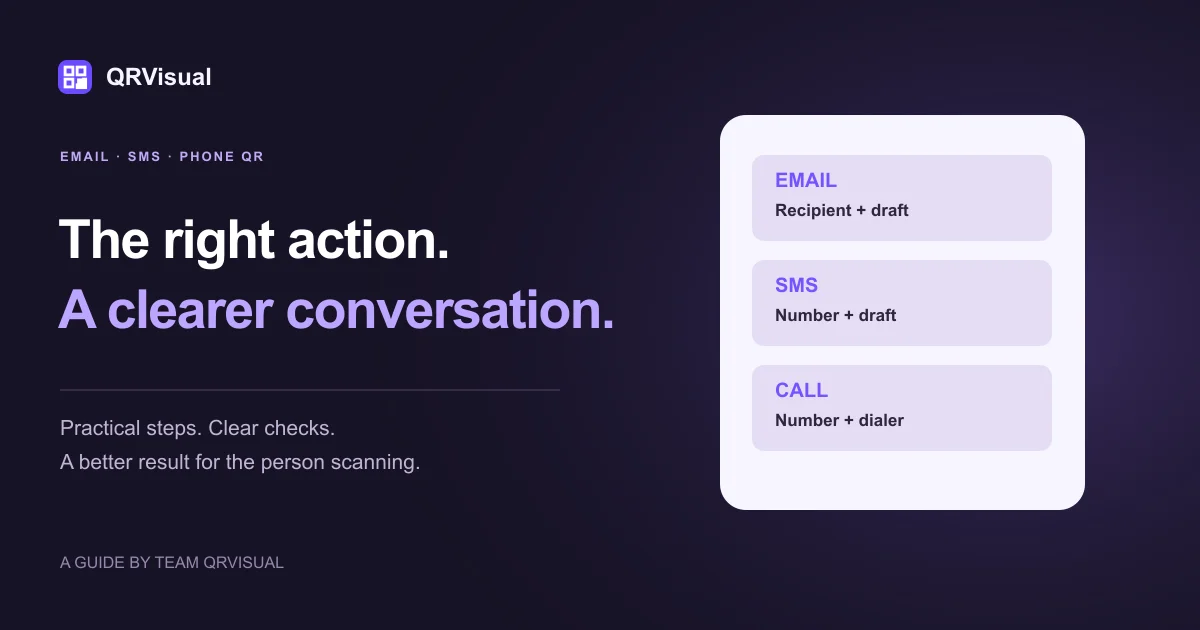
Quick answer: Choose Email to prepare a recipient, subject and draft; SMS to prepare a text message; or Call to open a phone number in the dialer. These QR types prepare an action. They do not automatically send a message or place a call. Test the downloaded code with the intended phone apps.
Create an email QR →Create an SMS QR →Create a call QR →
“Contact us” can mean three different jobs: send a detailed question, send a short text or speak to someone now. A QR works best when the printed instruction names that job. A customer should know what will open before pointing a camera at the code.
QRVisual has separate email and phone tools, plus an SMS option in the QR type selector. This guide explains how to choose between them, prepare the fields and test the final customer experience. If you want a WhatsApp conversation instead, follow the WhatsApp business QR guide.
Choose the action before creating the code
| Use case | Choose | What the visitor should see |
|---|---|---|
| A question needing a subject and detail | A mail composer with your recipient and draft | |
| A short question to a mobile number | SMS | A messaging composer with the intended recipient |
| A booking or support phone line | Call | The phone dialer with the intended number |
Consider who answers and when. A call QR beside an unattended evening desk may be less useful than an email address. If several options appear together, label each one separately rather than putting three nearly identical symbols under a single “contact” heading.
Create an email QR with a useful draft
- Open the email QR generator.
- Replace the sample recipient with the mailbox you monitor.
- Add a short subject that helps staff route the question.
- Write an optional body that a visitor can edit.
- Download the image, scan it and inspect the recipient, subject and line breaks.
The email tool creates a mailto: link. The device needs a suitable mail handler to open it; a desktop without a configured mail application may respond differently from a phone. Creating a QR is not a test that the mailbox exists or accepts messages.
Example for a service desk
Printed instruction: Scan to email our service team.
Subject: Question about your repair service.
Draft: Hello, I would like to ask about…
Keep the draft general. Do not put an individual customer’s address, account number or private problem description into a code displayed publicly. Anyone who receives the image can read its encoded content.
Create and test an SMS QR
Open the SMS QR option, enter your number with the country code and add a short optional message. Use the number that should actually receive texts; a voice-only line is not a useful SMS destination.
QRVisual uses the SMSTO barcode convention. Different camera and messaging apps can interpret SMS payloads differently, so do not assume a scan on one device proves every phone will populate the same fields. Check the recipient and draft on the devices most relevant to your audience. Carrier service or message charges may apply when the visitor sends the text.
A useful instruction is “Scan to text us about availability.” A vague “Scan me” label gives no warning that a messaging app will open. Put a readable number beside the image so someone can contact you without scanning.
Create a phone-call QR
Use the phone QR generator for a straightforward voice contact. It creates a tel: link that identifies the number. Scanning prepares the call route; the phone and visitor control what happens next.
Check the country code and every digit. Keep opening hours or routing instructions in the printed caption rather than encoding a complicated telephone menu. If an extension is important, show it as readable text and test the complete route with the actual telephone system. The basic tool does not configure your phone line.
Test the final customer journey
- Scan the exported image rather than only looking at the generator preview.
- Confirm that the expected application opens.
- Check the complete recipient or phone number before sending or calling.
- Inspect the draft, including spaces, punctuation and line breaks.
- Test the final printed size and material.
- Confirm staff can receive and respond through the chosen channel.
When an image will not read, use the scan troubleshooting guide. When it reads but opens the wrong app or omits a message, investigate the device’s handler or choose a website contact page as a more flexible destination.
Common questions
Will scanning send an email or text automatically?
The code prepares contact information or a draft. The visitor reviews it and decides whether to send. Test the behavior in the actual camera and messaging applications.
Can I replace the number after printing?
Changing the information encoded in a static contact QR requires a replacement image. Update each sign, card and template using it.
Should I use a vCard instead?
A vCard is useful when the task is to save your contact details. Email, SMS and call codes focus on starting one specific action. See the contact-card guide if saving details is your main goal.
Create an email QR →Create an SMS QR →Create a call QR →
Sources and further reading
Tool fields and source references checked on 18 October 2026. Device handlers and platform interfaces can differ; test the exact route your audience will use.
Related guides
A step unclear? Tell Team QRVisual so we can improve this guide.